
Installing FleetNav
Let’s get you set up.
Follow the steps on your device. FleetNav selects the components and prepares your maps automatically.
- Stable Wi-Fi
- Device connected to power
- Activation code ready
Step 1 of 6
Install FleetNav
Download the app to your device and open the APK file in Downloads. Tap Install, then Open.

The Downloads folder on your device
If Android asks to allow installation from this source, open the suggested settings, allow it for the browser or file manager you are using, then return to the file.
Step 2 of 6
Enter your activation code
Enter your code in the XXXX-XXXX format, or tap Paste from clipboard. Then tap Activate. An internet connection is needed to verify the code.
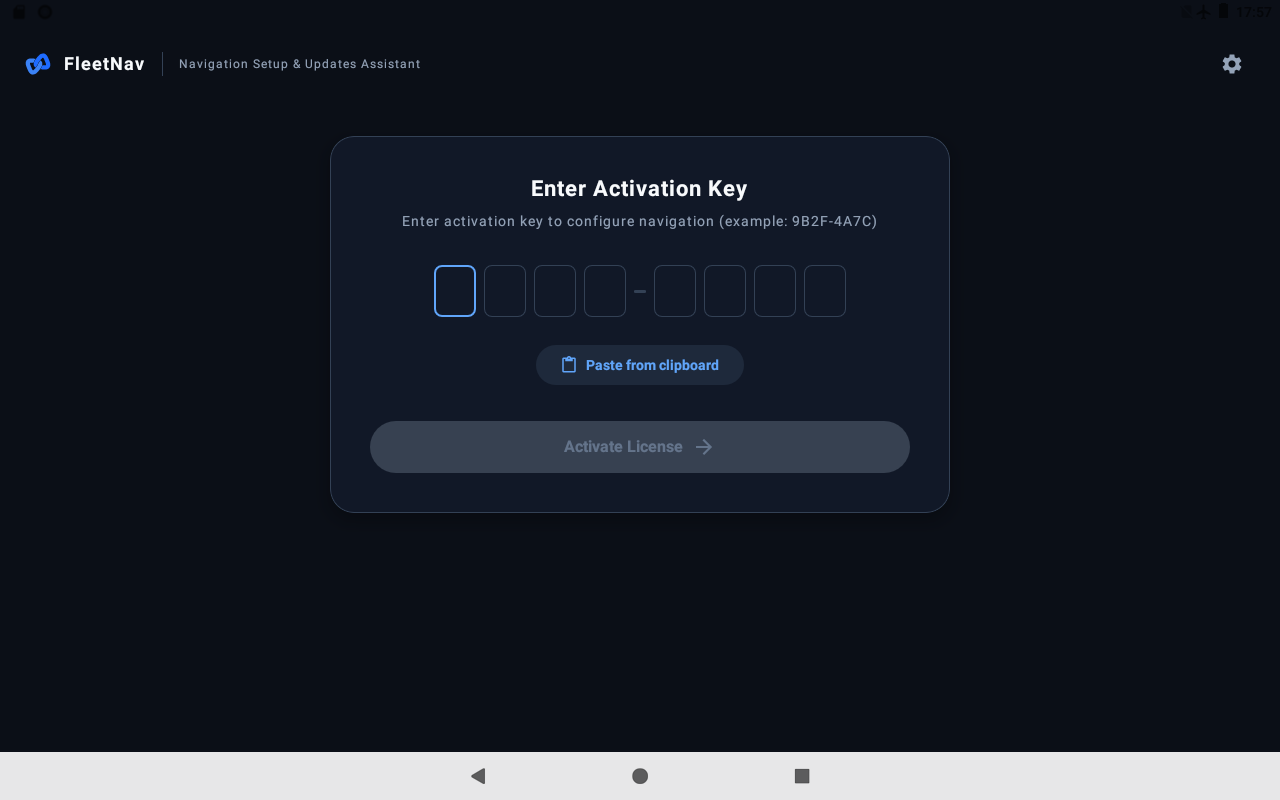
Use your personal code. The example format is not an activation code.
Step 3 of 6
Grant permissions
Follow the prompts in FleetNav. Grant file access and permission to install apps. Notifications let you follow download progress.
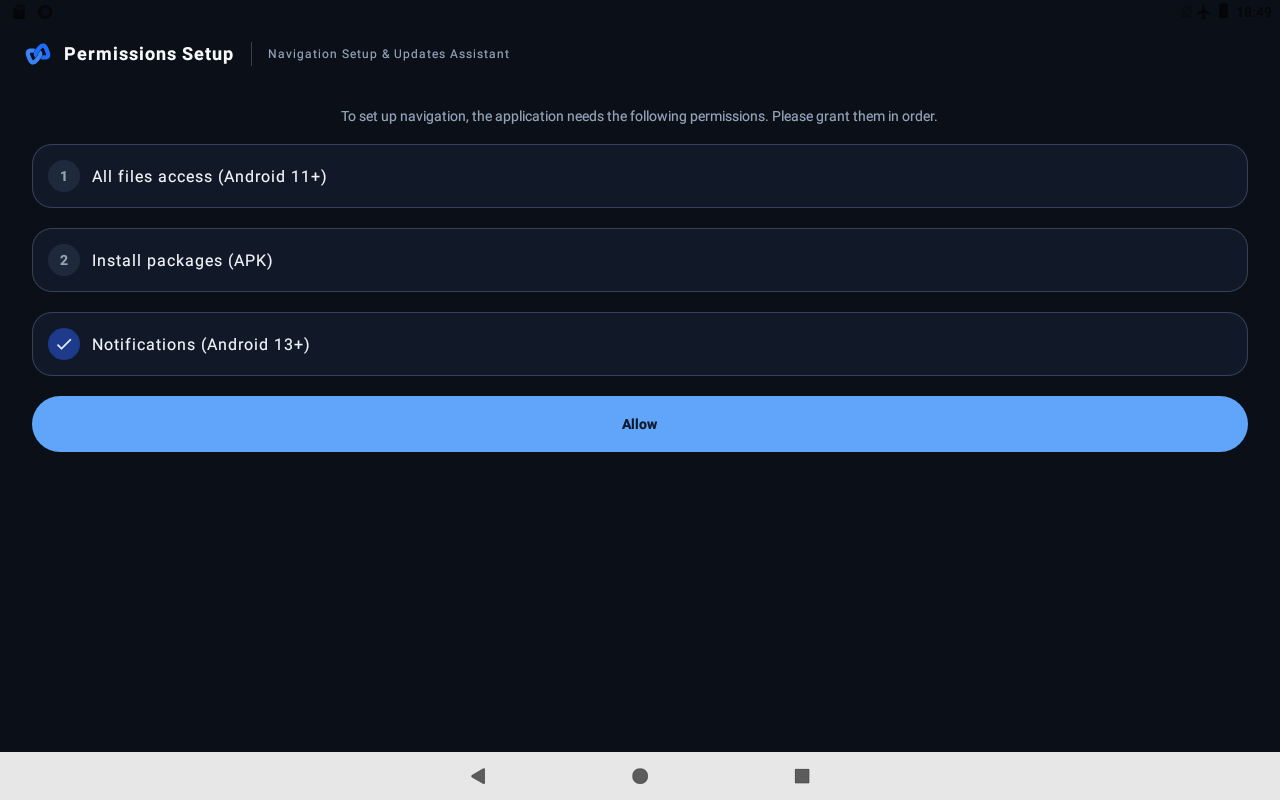
Return to FleetNav after each visit to Android settings. The requests depend on your Android version.
Step 4 of 6
Start installation
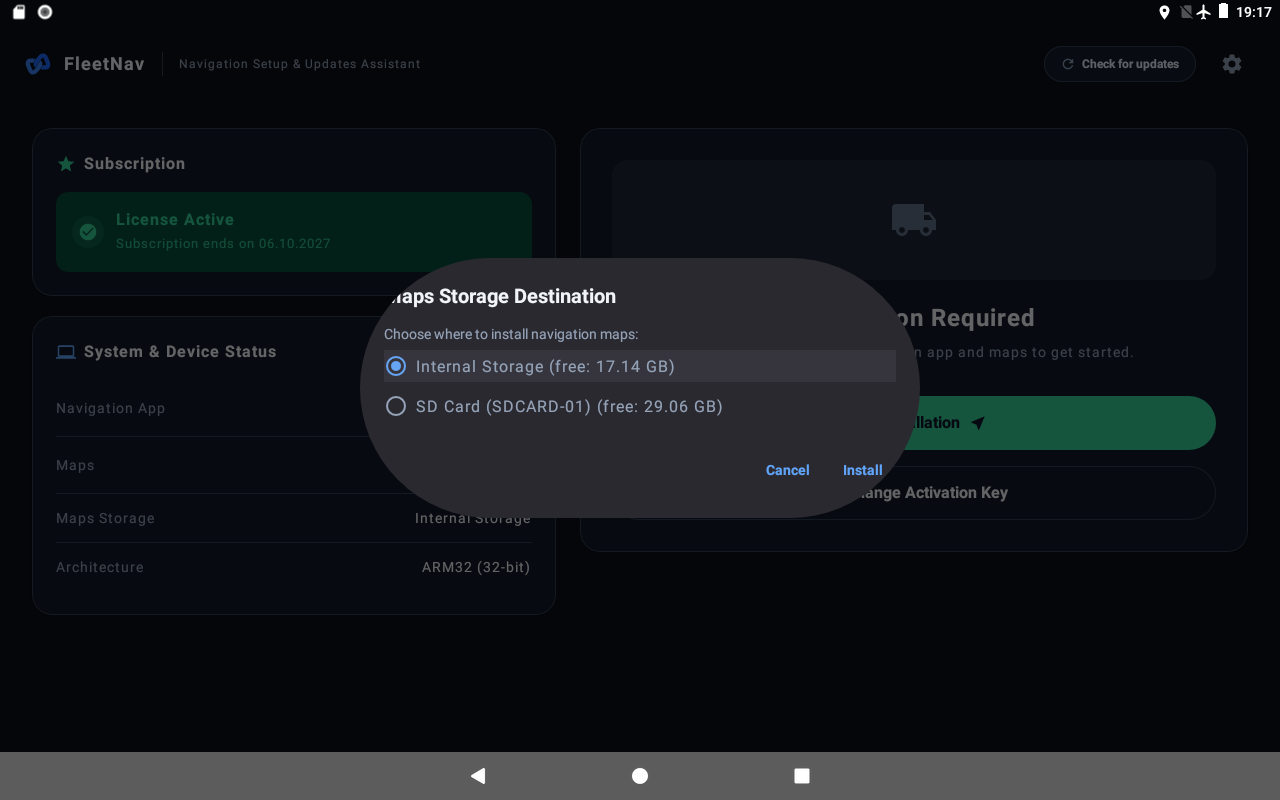
Tap Start installation. If asked where to store maps, choose the device’s internal storage or an SD card with enough free space.
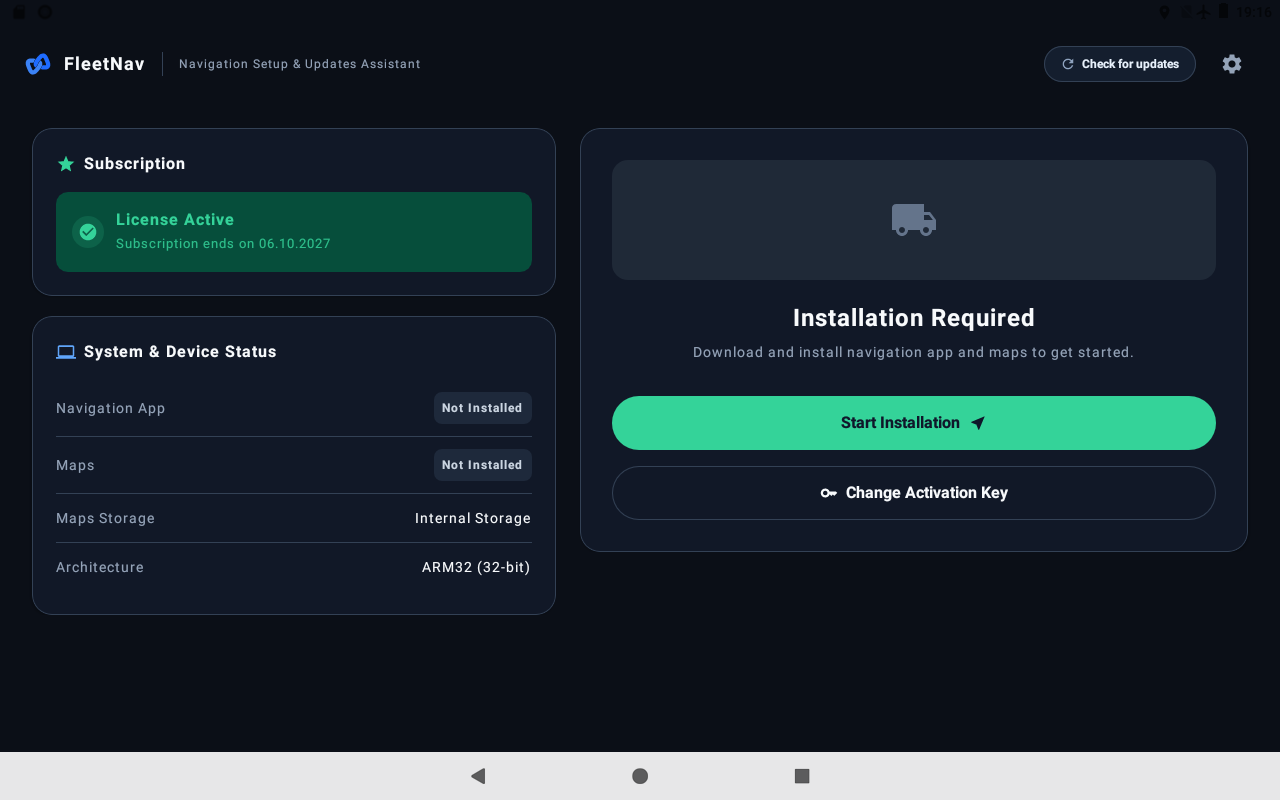
The right components are selected automatically. You do not need to identify your processor architecture.
If the storage selection appears
Step 5 of 6
Wait while maps are prepared
FleetNav downloads the required files, checks the download and prepares the components. The screen shows the current stage and progress.
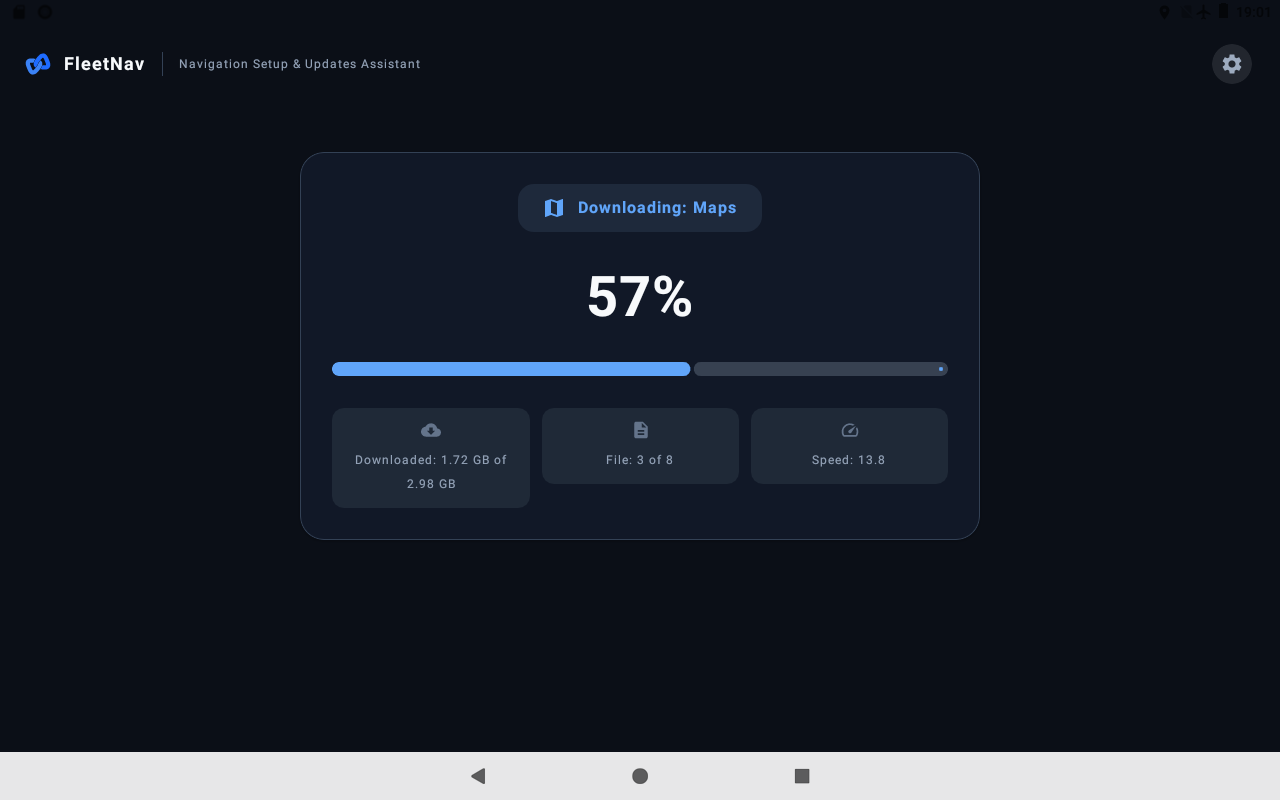
Keep the app open and the device connected to power and Wi-Fi. Download time depends on your connection and the size of the maps.
Step 6 of 6
Confirm and launch
Confirm installation of the navigation app in the Android prompt. When finished, return to FleetNav and tap Launch navigation.
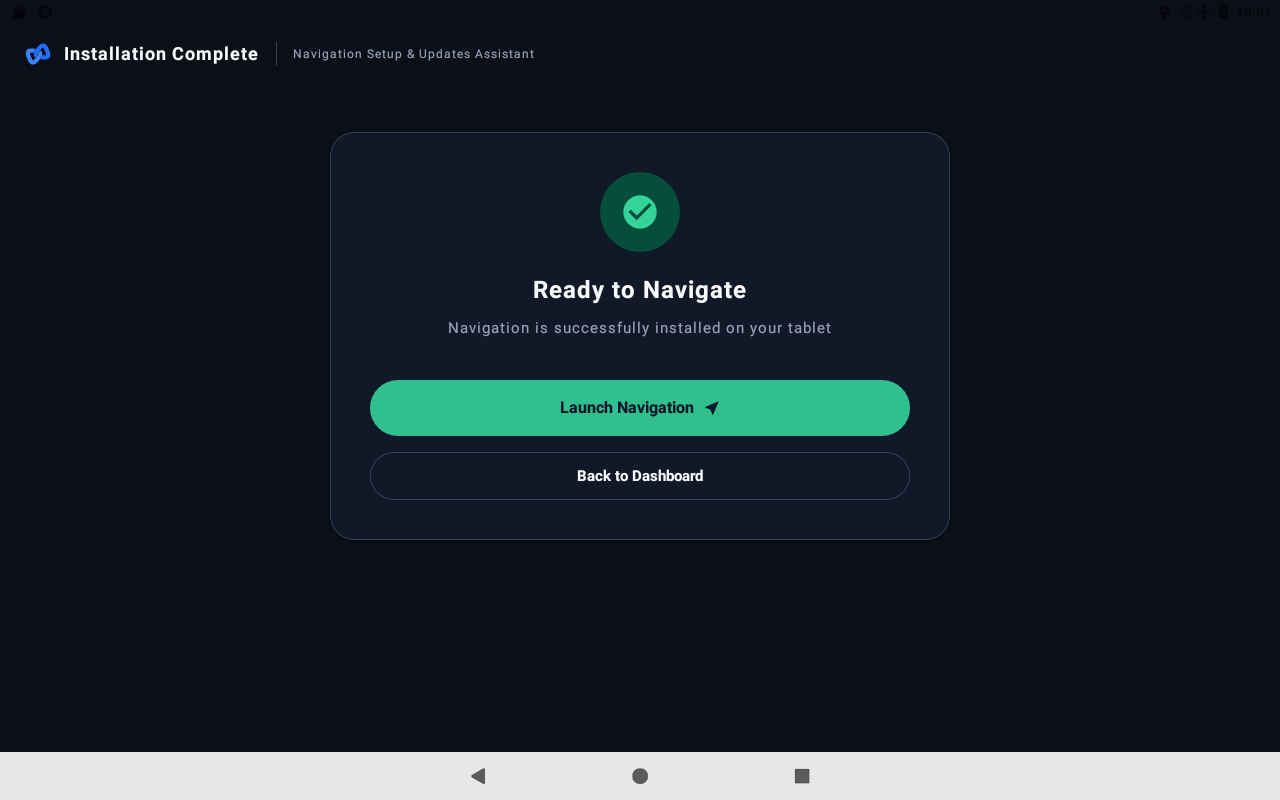
You can use FleetNav later to check for updates and update your maps.
Installation problems+
Open this section only if something does not go as expected.
Google Play Protect shows a warning
Follow the instructions for the dialog shown on your device.
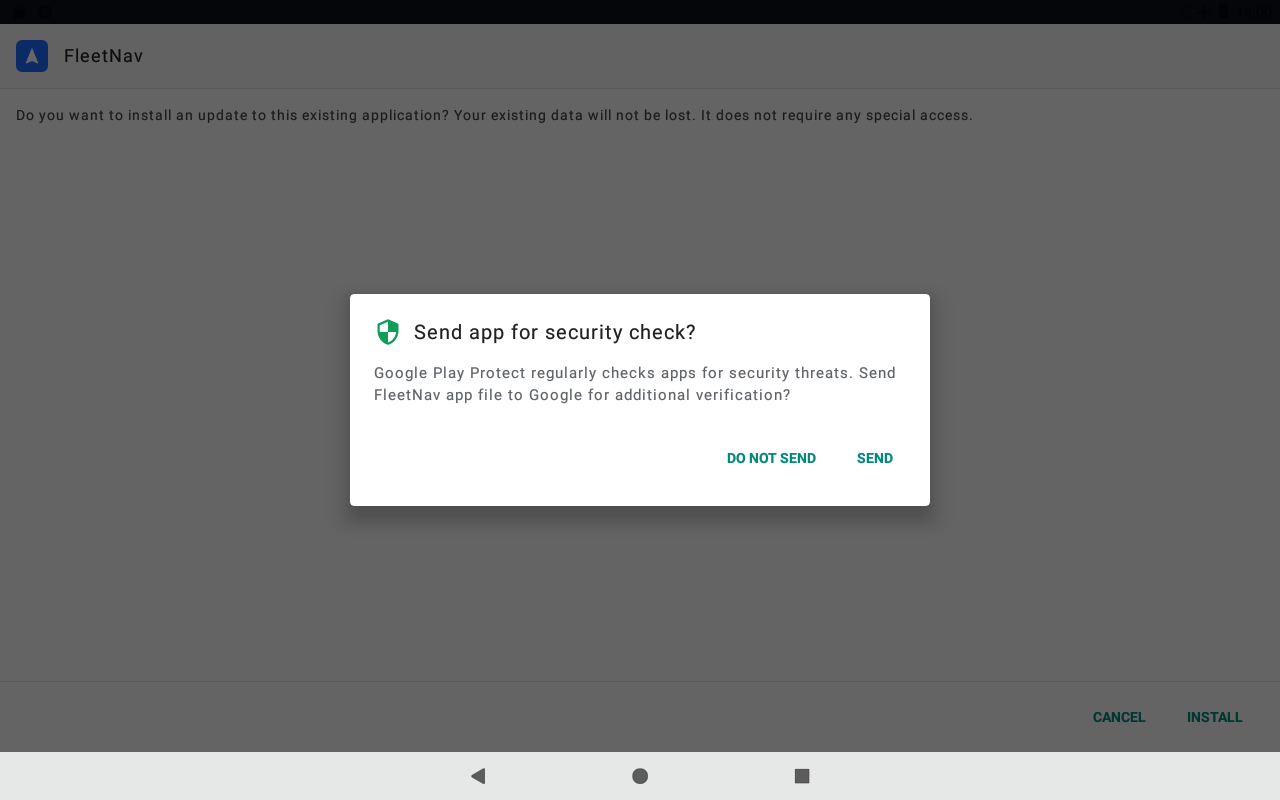
“Send app for scanning?”
- Tap “DON’T SEND” at the bottom of the dialog.
- Continue by tapping “Install”.
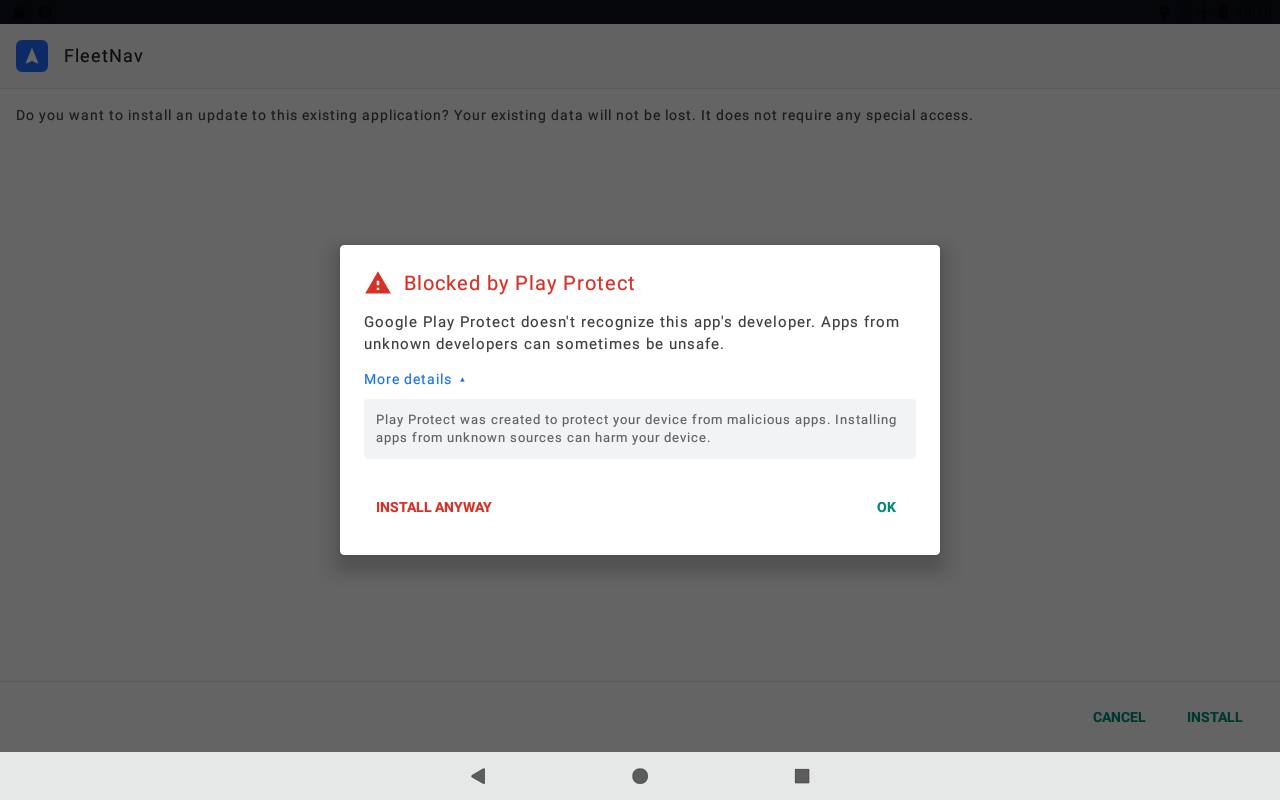
“Blocked by Play Protect”
- Tap “More details” to reveal additional actions.
- Tap “Install anyway” or “Install anyway (unsafe)”. The “OK” button closes the dialog; it does not continue installation.
When “App installed” appears, tap “Open” to launch FleetNav.
If installation stopped after you tapped “Send” or “OK”, reopen the downloaded APK in Downloads and follow the instructions for the dialog that appears.
My activation code is not accepted
Check the characters or paste the code from your message. If the code is linked to another device, contact the administrator who provided it.
There is not enough space for maps
Free up storage on your device. If FleetNav offers a storage selection, you can choose an SD card with enough free space.
The download was interrupted
Check your Wi-Fi and return to FleetNav. Follow the message in the app: wait for the download to resume or retry.
Your activation code, within reach
Get an activation code and enter it in the app.